
UI Layout
Small real estate, big impact. Chrome announced vertical tabs in the year of our Lord 2026. It’s time for something better.
Kaba keeps the screen for your content. There is one slim bar at the top, the Kaba bar, and below it one or more panes tiled inside the current frame. The address bar, the frame list and the menus are overlays that appear when summoned and then go away.
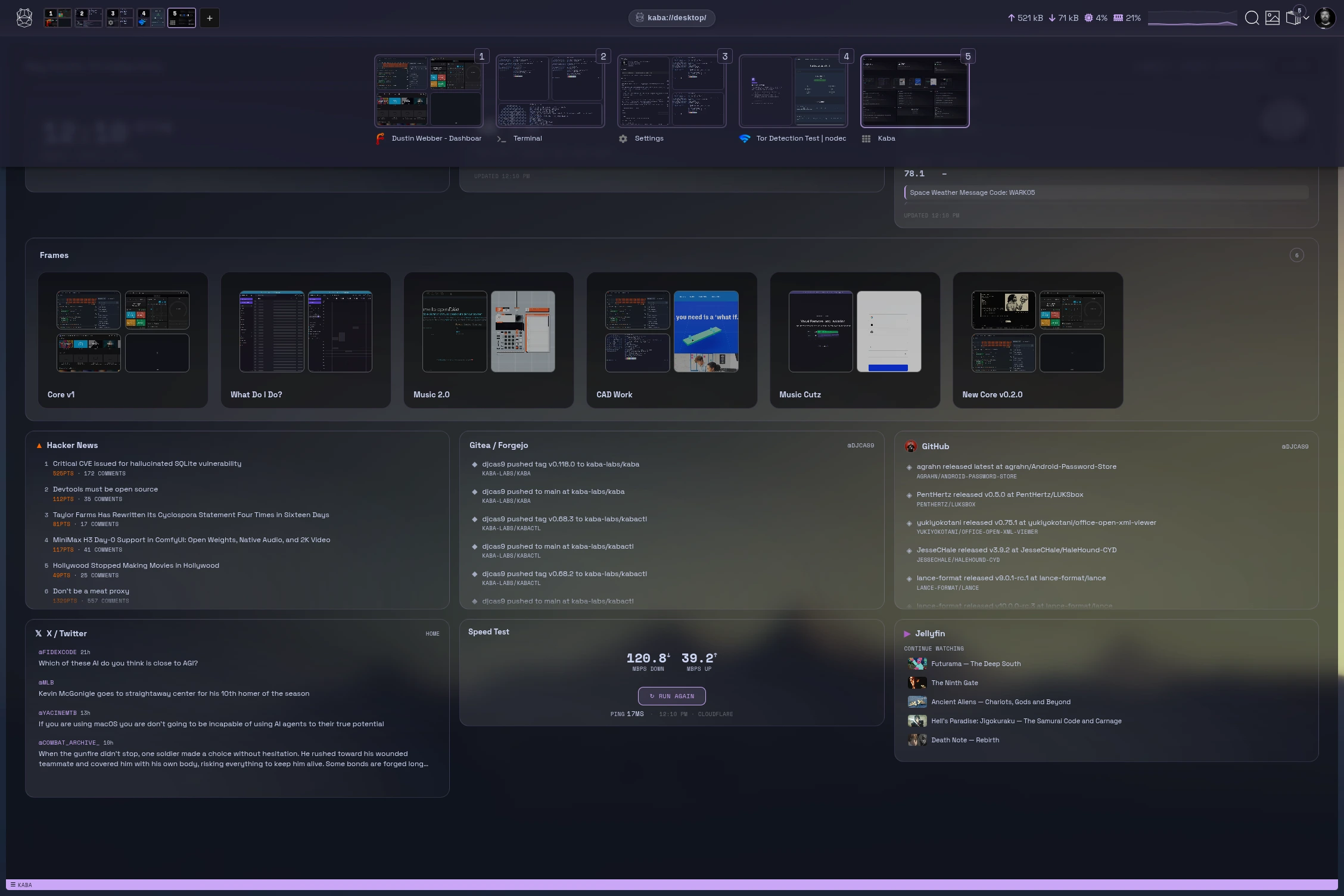
[todo: add screenshot of the full Kaba window and of parts Kaba bar, frame strip, a frame with two tiled panes, pane status bar.]
Frames Menu
Section titled “Frames Menu”Frames are a window. Panes are smaller windows within a Frame. Kind of like how some windows are grids, or divided windows. For those that are used to the terminal, this is home. Welcome.
For the rest, this all will feel second nature very soon, just get in and drive.
The Frames Menu is in the top right of your default Kaba layout between your Avatar and your Downloads. In the Frames Menu you can:
| Item | Does |
|---|---|
Add new Pane | Opens a new pane in the current frame, on the desktop. |
Add new Frame | Opens a new frame. Same as Ctrl/Cmd+T. |
Save current Frame | Keeps this layout and its pages under a name. Saved frames live in Hippocampus and on the desktop. |
Rebalance current Frame | Evens out the panes. |
View all Frames | Opens your saved frames. Same as /frame in the omnibar. |
The badge on the icon is the number of open frames.
[todo: add screenshot of the Frames Menu and of parts the icon with its count, Add new Pane, Add new Frame, Save current Frame, Rebalance current Frame, View all Frames.]
Omnibar icon menu
Section titled “Omnibar icon menu”The omnibar icon opens the omnibar: address bar, search and command palette in one. The same thing happens with Ctrl+Space or Ctrl/Cmd+L. It slides in from the top, does what you asked, and gives the space back.
[todo: add screenshot of the omnibar icon and of parts the icon in the Kaba bar, the omnibar open beneath it.]
Avatar
Section titled “Avatar”Your avatar sits in the top right corner. It is your account’s picture, which you can change in Settings, and it is the button that opens the Kaba menu. See accounts.
Kaba menu
Section titled “Kaba menu”Click your avatar to open it.
| Item | Opens | Omnibar |
|---|---|---|
| Projects | Kaba Projects | /projects |
| Terminal | Terminal | /term |
| File Manager | File explorer | /files |
| Saves | Your saved frames | /frame |
| Discovery | Discovery | /discover |
| HippoCampus | Hippocampus | /mem |
| Downloads | Your downloads | /downloads |
| Toolbench | Toolbench, when AI is enabled | /toolbench |
| Disable / Enable Blocker | The global ad-blocker switch | |
| Sites | Settings → Sites | |
| Settings | Settings | /settings |
| Exit Kaba | Quit, after confirming |
When an update has been downloaded, Restart to update Kaba appears at the top.
Right-click an empty part of the Kaba bar for window actions: reload the Kaba shell, clear the app cache, unload the system model, lock Kaba, toggle fullscreen or minimal mode, minimize, and quit.
[todo: add screenshot of the Kaba menu and of parts each menu item with its omnibar shortcut, the Restart to update item.]
Performance
Section titled “Performance”The Kaba bar shows live network upload and download, CPU usage and memory usage, with a small chart. Change how often it samples, or turn it off, under Settings → System monitor refresh interval. See Kaba bar.
Frames
Section titled “Frames”Frames are Kaba’s take on tabs. A frame is a workspace: it holds one or more panes arranged the way you left them. Switching frames switches the whole arrangement.
| Action | How |
|---|---|
| New frame | Ctrl/Cmd+T |
| Switch to frame 1 to 8 | Ctrl/Cmd+1 … Ctrl/Cmd+8 |
| Last frame | Ctrl/Cmd+9 |
| Next / previous frame | Ctrl/Cmd+Right / Ctrl/Cmd+Left |
| See which frames are open | Ctrl/Cmd+` |
| Close the window | Super+Shift+Q (Linux), Cmd+Shift+Q (macOS), Ctrl+Shift+Q (Windows) |
Ctrl/Cmd+` shows which frames are available. Navigate them with the left and right arrow keys, and close one by clicking its x.
The frame strip in the Kaba bar has a thumbnail for each open frame. Click to switch, drag to reorder, right-click for the frame menu. A thumbnail shows small marks when Kaba is driving a pane in it, when a pane is frozen to save memory, or when a pane is muted.
[todo: add screenshot of the frames view and of parts frame thumbnails, the active frame, the close x, arrow-key navigation.]
Frame menu
Section titled “Frame menu”Right-click a frame in the strip:
- Layout Mode: Tiling or Tabbed. See tiling windows.
- Mute Frame
- Freeze All Panes / Wake All Panes: release or restore the frame’s memory. See Memory Saver.
- Save Frame
- Close Frame, Close Other Frames, Close Frames to the Right
Frame groups
Section titled “Frame groups”Group related frames under a coloured, named chip.
| Action | How |
|---|---|
| Group with the previous frame | Ctrl/Cmd+G, or the frame menu |
| New group with this frame | Frame menu |
| Add to an existing group | Frame menu → Add to group |
| Remove from group | Ctrl/Cmd+Shift+G |
Right-click a group chip to rename it (F2), change its colour, add a frame, freeze or wake the whole group, ask Kaba about it, ungroup, or close every frame in it. A group can be saved and reopened later from Hippocampus.
Two settings under Look & Feel control how groups behave: One frame group open at a time collapses the others when you open one, and Fold a group back down after collapses a group to its chip once you stop interacting with it.
[todo: add screenshot of frame groups in the strip and of parts a group chip with colour, an expanded group, a collapsed group, the group context menu.]
A pane is one page, terminal or app inside a frame. Every pane has a thin status bar with back, forward, reload or stop, developer tools, a move handle and close, plus badges when the pane is in Ghost Mode, on Tor, or frozen. The focused pane is marked by the chartreuse bar along its bottom edge.
Right-click inside a pane for its menu: navigation, split, move, fullscreen, Open Terminal, Open My Hippocampus, Add this Memory, Discard Pane Now, Ghost Mode, Tor and per-pane ad blocking.
How panes are arranged is covered in tiling windows.
[todo: add screenshot of a pane and of parts status bar buttons, the focus bar, Ghost Mode badge, Tor badge, the pane context menu.]
Surfaces that appear on demand
Section titled “Surfaces that appear on demand”| Surface | Open with | Notes |
|---|---|---|
| Omnibar | Ctrl+Space, Ctrl/Cmd+L | Slides in from the top. |
| Frames view | Ctrl/Cmd+` | |
| Find in page | Ctrl/Cmd+F | Ctrl/Cmd+G and Shift+Ctrl/Cmd+G for next and previous. |
| Downloads | Kaba bar | Pause, resume, cancel, Show in Files, Show in System. |
| Toasts | automatic | Short answers and notices, including replies to context-menu AI actions. |
| Permission prompts | automatic | Allow or Block when a site asks for a capability. |
Compact layouts
Section titled “Compact layouts”- i3 mode (Settings → Look & Feel) replaces frame thumbnails with numbered workspace chips for a minimal, keyboard-first bar.
- i3-style compact header (Settings) shrinks the bar to about 24 px with workspace squares for frames 1 to 9. Reach the address bar through the omnibar.
- Focus mode (Toggle Minimal Mode) removes the Kaba bar:
Ctrl+Cmd+\on Linux and macOS,Ctrl+Shift+\on Windows. This happens automatically in full screen. - Fullscreen:
F11, orCtrl+Cmd+Fon macOS.
[todo: add screenshot of i3 mode and of parts numbered workspace chips, group underline, compact header.]