
Machine Learning
AI is everywhere in Kaba but not in the way
Kaba runs small models on your own devices, personalizes them with adapters trained on your memories, and puts a policy between every model and everything it can touch. All of it is optional.
Turn it on
Section titled “Turn it on”Settings → Features → Enable AI. It is off by default. Turning it on adds:
- the AI actions in the right-click menu,
- Projects and Toolbench,
- the Policies and Models & Adapters pages in Settings.
The first time something needs a model that is not installed, Kaba tells you which one and how big it is, and waits for you to press the button. Nothing downloads on its own. Messages you send in the meantime are held until the model is ready.
To free memory at any time, right-click the header and choose Unload System Model.
How to access models
Section titled “How to access models”/projectsor/askin the Omnibar (local ai chat)super + enterin the Omnibar, for an answer in a toast- right click menu
Details for the first two are under omnibar; the right click menu is next.
AI actions on a page
Section titled “AI actions on a page”Select text and right-click. The actions run on your device and answer in a toast; from the toast you can continue in a project.
| Group | Actions |
|---|---|
| Analysis | Explain, Fallacies of Logic, Synthesize, Reverse Engineer |
| Question | Generate Questions, Bull Case, Bear Case, If true, then? |
| Respond | Rebuke, Agree, Auto Debate |
| Debug | Linux Debug, Code Debug |
| Format | Proofread, Summarize, Rewrite |
| Convert | JSON, YAML, HTML, Go, Rust, Lua, JavaScript, Ruby, C |
| Writing Helpers | Fix Spelling & Grammar, Change with Prompt… |
In a text field with nothing selected, Writing Helpers write into the field instead: Write What Belongs Here, Write with Prompt…, Continue Writing, Make It Shorter, Make It More Formal, Make It Friendlier, Draft a Reply to This Page, and Summarize This Page Here.
[todo: add screenshot of the AI context menu and of parts the Analysis, Question, Respond, Debug, Format, Convert and Writing Helpers groups, and an answer toast.]
Policies
Section titled “Policies”A policy bundles every decision about a model in one named, reviewable object: where it runs, which model and adapter answer, how it generates, and what it is allowed to do. One policy is active for your account; a project can choose another.
Settings → Policies lists them. Create one with Create Policy, or Import policy from a .kabap bundle.
[todo: add screenshot of the Policies list and of parts Active marker, Name, Inference target, Create Policy, Import policy.]
What a policy sets
Section titled “What a policy sets”Where it runs
| Setting | Options |
|---|---|
| Inference target | This device, or a peer in your cluster. |
| Sandbox target & container | Which device and which container image all file, code and execution work uses. Only images imported on that target are listed. |
What answers
| Setting | Options |
|---|---|
| Base model | Default (the device decides), small (about 2B, fast), large (about 4B, stronger for code, more memory), or an imported model. |
| LoRA adapter | None, or one of the adapters on the target. For a peer: the peer’s default, or a named one. |
| System prompt | Optional. Empty uses the model’s own default, or the built-in Kaba persona. |
How it generates
| Setting | Notes |
|---|---|
| Tune for | Presets: Tool work, Chat & information, Writing help, Code generation, Brainstorming & ideas, or Custom. |
| Context window | Auto sizes each request to fit, up to 32768 tokens. Auto-slide starts tool runs at 8192 and grows only when needed. |
| Max output tokens | Default 1024. Up to half the context window. |
| Seed | Off for chat. Set it, with temperature 0, for tool work and benchmarking, so the same prompt gives the same answer. |
| Turbo cache | Compresses the model’s working memory on the serving node so larger contexts and more simultaneous runs fit, at a small quality cost. Off by default. |
| GPU offload | Auto fits layers to free graphics memory. Or CPU only, half, or the whole model. |
| Expert-model prefill | For mixture-of-experts models: Auto, Prefer speed or Prefer stability. |
What it may do
| Setting | Options |
|---|---|
| Command execution | Ask (propose, you click Run), Auto-run (read-only allowlisted commands run immediately), or Off. |
| Sandbox networking | Off, Model may request, or Always on. |
| Max tool steps per run | The ceiling for one run, up to 400. |
| Workflow choice | Automatic, Standard or Testing. |
| Steer control | How the coding loop recovers when a step goes wrong. All on by default. |
| Prevent overriding policy settings | Projects under this policy run it exactly as configured. Their own controls are disabled and saved overrides are ignored. |
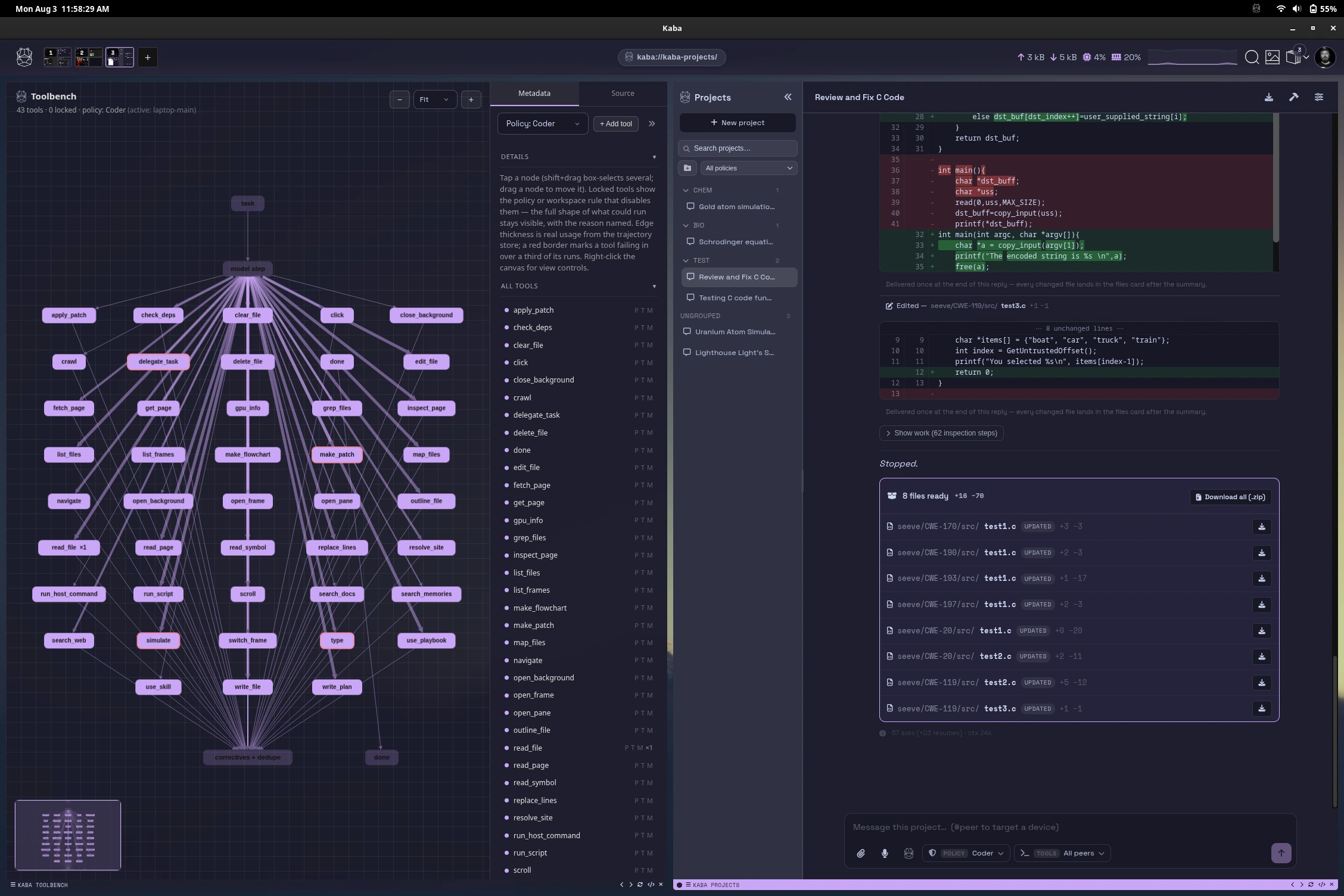
Tool-by-tool permissions are edited in Toolbench, opened from the policy with Toolbench →. See projects & tool loop.
[todo: add screenshot of the policy editor and of parts Inference target, Base model, LoRA adapter, Context window, Generation settings, Command execution, Sandbox networking, Prevent overriding policy settings.]
Policy ceilings win
Section titled “Policy ceilings win”A policy’s denied tools and its step limit are applied last, and nothing below can undo them. A project can narrow what a policy allows. It cannot widen it.
Share a policy
Section titled “Share a policy”Export writes a .kabap file: the policy’s settings, its tool overlay and its flows. It does not include model files, and it leaves out anything that names a specific machine. Whoever imports it chooses where it runs. See file formats.
Models and adapters
Section titled “Models and adapters”Settings → Models & Adapters is the library for one device. Use the Device selector to look at a peer’s.
Two layers personalize inference:
- Models are whole base weights in GGUF format.
- Adapters are LoRA deltas applied on top of a base.
Which one actually serves a request is chosen by the policy. This page is where they are stored.
Models
Section titled “Models”Import a model by pasting a Hugging Face repository URL or a direct .gguf link. When a repository has several quantizations, the best fit is picked automatically. Any GGUF with a chat template works:
- Gemma-family models add local training and image and audio input.
- Other architectures are served through their own chat template, text only.
One model can be marked the node default. It serves any request that does not name a model. Clear it to fall back to the stock weights.
Adapters
Section titled “Adapters”Adapters come from three places: training on your memories, importing by URL, or browsing Hugging Face from the page. The list shows each adapter’s name, base and format.
Adapters pair with a base by architecture family: a Gemma adapter for Gemma models, a Qwen adapter for a Qwen import. Policies filter the choices automatically, and the engine verifies the shapes before loading one.
[todo: add screenshot of Models & Adapters and of parts the Device selector, the model list with node default, Import model, the adapter list (Name, Base, Format), Import adapter, Browse HuggingFace.]
Training turns a selection of your memories into a LoRA adapter on top of the base model. You can start it from the client or from the command line.
Training from the client
Section titled “Training from the client”Start it from Settings → Devices: open a device’s menu and choose to train there, on this device or a peer with a GPU.
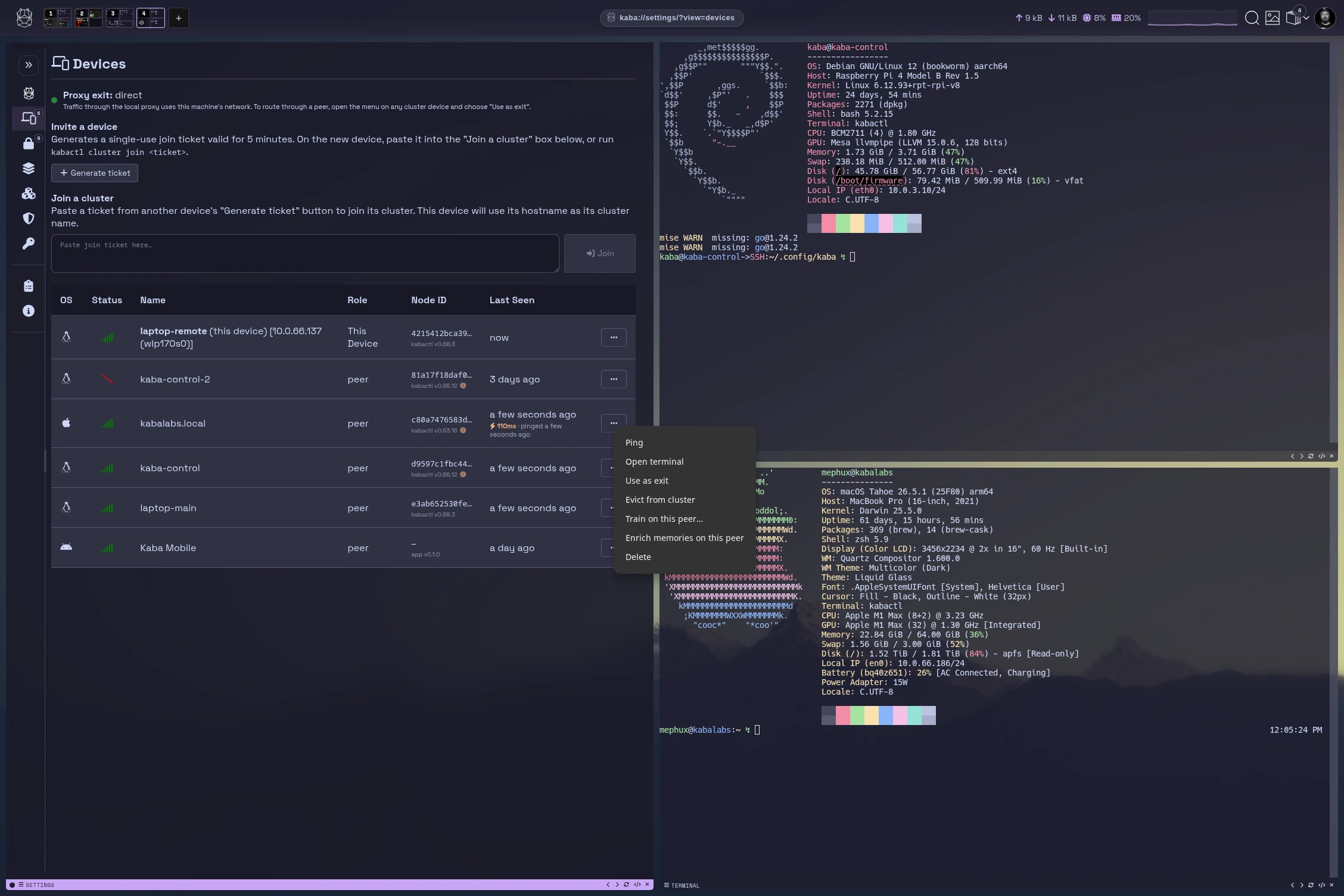
The training dialog asks for:
| Section | |
|---|---|
| Your profile | Your name, a line about you, interests, preferred tone, and anything to always keep in mind. This is built into the adapter so answers read as your own recall. |
| Date range | All records, the last period (such as 7d or 24h), or a range. |
| Only these domains / Exclude domains | Suffix match, for example nature.com. |
| Topics | Semantic match against each memory, with a threshold (default 0.30). |
| Keywords | Literal match in title, address or text. |
All filtering happens on this device. When you train on a peer, the peer receives only the filtered set.
While a run is in progress, the device’s row shows its progress, with Pause, Resume and Stop. When it finishes, the adapter appears under Models & Adapters and can be chosen in a policy.
Enrich memories… in the same menu runs the summarisation and tagging pass on its own, which fills in categories and tags in Hippocampus.
What goes in is shaped by what you did in Hippocampus: boosted and suppressed memories, your thoughts, and the ignore list.
[todo: add screenshot of the training dialog and of parts Your profile, Date range, domain filters, Topics with threshold, Keywords; and a device row showing training progress with Pause and Stop.]
Manually Triggering Kaba’s Training Task
Section titled “Manually Triggering Kaba’s Training Task”To manually trigger Kaba’s Language Model (LLM) training task, you can use the following command:
~/.config/kaba/bin/kabactl train --helpThis command provides information about various options available for Kaba’s training task. Here is a brief explanation of the most relevant options:
Which memories
Section titled “Which memories”--workspace: The account (your email) whose encrypted memories to train on. Without it, training opens the global store, not your saved memories.--since,--until,--last: Only train on memories in a window. AcceptsYYYY-MM-DD, an ISO instant, or a duration like7dor24h.--min-records: Minimum number of memories required before training will start.
Optional options
Section titled “Optional options”--node: Train on a cluster peer instead of this machine.--output-name: Name for the resulting adapter.--epochs: Number of passes over the data.--lr: Peak learning rate.--warmup-ratio: Fraction of steps used to warm the learning rate up.--lora-rank: Size of the adapter.--batch-size: Number of samples per training step. Directly impacts VRAM usage.--seq-len: Number of tokens the model processes at once (Context length).--grad-accum: Number of batches to aggregate before updating model weights.--no-qlora: Train without quantization.--skip-summaries: Skip the summarisation pass.
Local training expects the kabactl server to be stopped, and needs a GPU. The full list, with defaults, is in the CLI reference.
Rolling Models
Section titled “Rolling Models”The above is the manual process for training Kaba’s personal language models. If configured to do so, Kaba will also run this nightly to have rolling weights that continue to train on your memory as it progresses autonomously.
[todo: confirm how nightly rolling training is configured in kaba 0.146 / kabactl 0.87 and document the setting.]
Autonomous
Section titled “Autonomous”- run nightly
- updates
- etc
[todo: write the Autonomous section: what runs on its own (memory capture, enrichment, scheduled training), how often, and how to turn each off.]
Where inference runs
Section titled “Where inference runs”Every request goes to kabactl, on this device or on the peer the policy names. Prompts, outputs and adapters do not go to a cloud service. On a peer, that peer’s own settings decide whether it accepts the work at all. See cluster & mesh.
From the command line
Section titled “From the command line”Everything on this page has a command-line form: kabactl get, ask, train, loras and lora-import. See models & training.